Mastering Time Management: How to Streamline Your Schedule as a Solo Healthcare Provider

If you’re looking for ways to improve your productivity, here are some tips on how CompanyOn’s booking management app organizes and frees up time so you can focus on more important things.

  • Get rid of distractions
  • Use CompanyOn’s scheduling app to prioritize your time and tasks
  • Convert your to-do list into a schedule for maximum productivity
  • Organize your appointments by due date, relevance, location, and/or priority
  • Track the time you spend on each task to identify areas for improvement

1. Set Up Reminders and Alerts so your client never misses an appointment.

CompanyOn’s appointment scheduling automatically sends reminders by email or text to clients before an appointment is due. You can set when to send these reminders manually as well.

This offers you a safeguard to help prevent the problem of no-shows if you are running a clinic and reminds clients of your visit. For those that don’t have CompanyOn as the platform to help manage their appointments, implementing such a process is a must.

2. Use the scheduler filters to view appointments based on location and clients’ needs.

One of the most effective ways to manage your appointments is to understand where you need to go and what you need to consider in advance of your visit. By using tags to identify the location of your clients or any specific information you would like to have for each of your clients, you can easily filter it to consider it in CompanyOn’s scheduling system. It can help you manage your time and plan your route ahead.

3. Use CompanyOn’s appointment reports to stay organized

To stay on track with your daily tasks, you can use CompanyOn’s appointment report prior to your visits. Making it ideal for seeing the big picture of your day ahead. The more carefully you plan your daily tasks, the more output you can expect from your day.

4. Make Use of CompanyOn’s waitlist

By having a list of patients who would like to be seen as soon as possible, you can frequently fill late cancellation appointment slots. You can simply tap into the list to schedule a visit right away and connect with your client to confirm their availability.

Make sure that your list is up to date and readily accessible.

A system like this increases client confidence and helps someone be seen sooner while saving you time and stress.

At CompanyOn, we’re committed to supporting our community of solo practitioners, no matter if they are just thinking in pursuing professional independence, or they are already well established solo practitioners.

Ready to make the switch?

Try Our Platform Free for 14 days.

See CompanyOn in Action

Schedule A Free 1:1 Personalized Demo
How to Improve Patient Retention with Automated Appointment Reminders

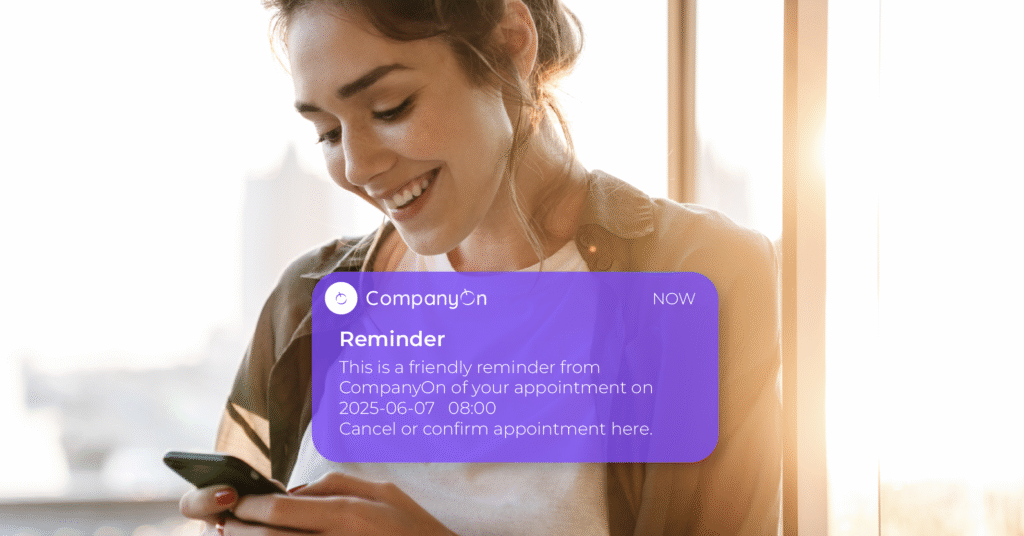
In a world where patients are increasingly busy and distracted, automated appointment reminders are no longer a luxury—they’re essential. Whether you’re a solo practitioner or run a small healthcare clinic, reducing no-shows and keeping your patients engaged are key to boosting retention and maintaining a healthy practice.

Let’s explore how this simple automation tool can have a powerful impact on your patient retention strategy.

Why Patient Retention Matters

Acquiring a new patient costs 5 to 25 times more than retaining an existing one. Yet, many practices unknowingly lose clients due to missed appointments and lack of follow-up.

Strong patient retention leads to:

  • Higher revenue stability

  • Better continuity of care

  • Increased patient satisfaction and trust

  • More efficient scheduling and planning

📚 Explore related strategies in Maximizing Patient Retention: Proven Strategies for Independent Clinics


The Impact of Missed Appointments

No-shows and late cancellations can seriously disrupt your operations:

  • Wasted time slots and revenue

  • Disrupted care plans

  • Administrative headaches

  • Decreased morale for healthcare providers

By simply introducing automated reminders, you can significantly reduce no-shows and cancellations—and enhance the overall patient experience.


How Automated Reminders Work

Automated appointment reminders are sent via email or SMS at scheduled intervals before an appointment. With CompanyOn, reminders are customizable and can include:

  • Confirmation and cancellation options

  • Links to virtual sessions (for telehealth)

  • Personalized instructions or forms

🔄 Learn how the feature works step-by-step: Confirmation & Cancellation of Appointments Online


Key Benefits for Patient Retention

Here’s how automated reminders can directly enhance your retention rates:

1. Reduce No-Shows and Last-Minute Cancellations

When patients are reminded in advance, they’re more likely to attend—or cancel with enough time to rebook.

2. Improve Communication and Trust

Consistent, timely communication makes patients feel cared for, organized, and connected to your practice.

3. Free Up Admin Time

Reduce the number of follow-up calls your staff needs to make. Focus on care, not calendars.

4. Rebook Missed Slots Faster

Combine reminders with tools like the Waitlist Feature to fill cancelled appointments efficiently.


Best Practices for Using Appointment Reminders

To get the most out of this tool, keep these tips in mind:

  • Send multiple reminders (e.g., 48h and 24h before)

  • Include an easy way to confirm or cancel

  • Make your messages clear, concise and friendly

  • Use the patient’s preferred communication method

  • Track analytics to improve your reminder timing

📈 Tip: Monitor your no-show rate trends inside your CompanyOn Dashboard


Final Thoughts

Automated appointment reminders are a simple yet powerful tool to retain more patients, reduce administrative stress, and increase operational efficiency. In the age of digital healthcare, this small automation makes a big difference.


Start Automating Your Reminders with CompanyOn

Ready to reduce no-shows and improve patient satisfaction?

📲 Try CompanyOn’s full suite of patient engagement tools, including reminders, waitlists, invoicing, and secure messaging.

👉 Get started with a free trial
🔍 Learn more about how we support independent providers

Ready to make the switch?

Try Our Platform Free for 14 days.

See CompanyOn in Action

Schedule A Free 1:1 Personalized Demo
Confirmation & Cancelation of Appointments online Feature

Managing appointments efficiently is crucial for solo healthcare practitioners. With CompanyOn’s Confirmation & Cancellation of Appointments Online feature, your clients now have the flexibility to respond to appointment reminders in real time—without needing to call or email your practice.

A smoother scheduling experience means fewer no-shows, better communication, and more time focused on patient care.

🗓️ What Does This Feature Do?

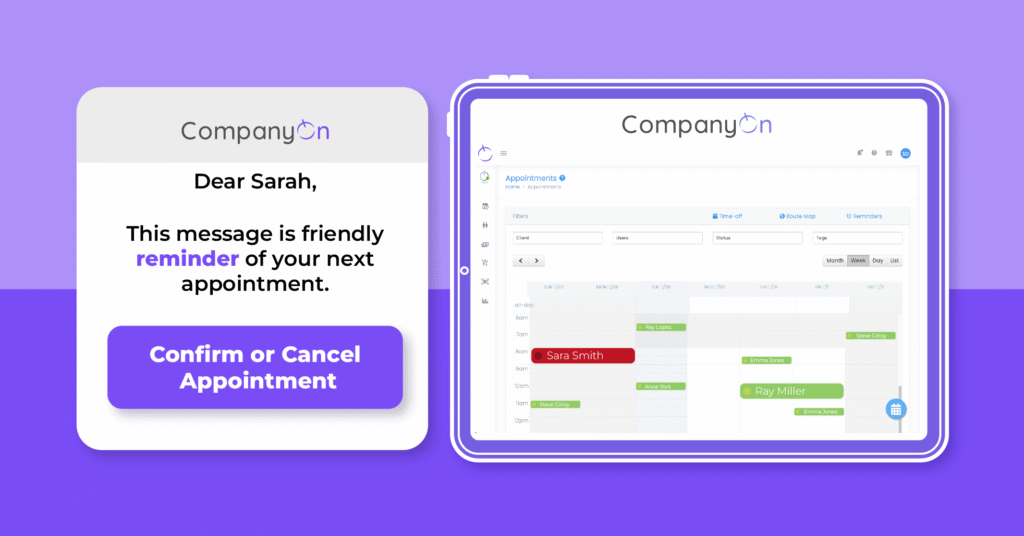
This feature allows clients to confirm or cancel their upcoming appointments directly from the appointment reminder emails or text messages sent via the CompanyOn platform.

📲 This complements our appointment reminder automation tool designed to improve show-up rates and clinic efficiency.


🔧 How It Works – Step by Step

1. Clients Receive the Reminder

Whenever an appointment reminder is sent out (based on your preset schedule), the message includes interactive options:

  • Confirm Appointment

  • Cancel Appointment

This applies whether the reminder is sent via email or SMS.


2. Client Confirms the Appointment

If the client taps or clicks “Confirm”, their confirmation is registered by the system. No further action is required from the provider.

  • ✔️ The status in your calendar remains unchanged.

  • 🔔 No email notification is sent to you, since the appointment is still valid.


3. Client Cancels the Appointment

If the client selects “Cancel”, a window pops up asking them to provide a reason for cancellation.

Appointment Cancelled Message

Once they submit the cancellation:

  • 📩 You receive a notification via email.

  • 🗓️ The appointment is marked in red on your CompanyOn calendar as Cancelled.

💡 Want to learn more about improving your calendar management? Visit our post on instant scheduling tools.


🎯 Why This Feature Matters

This feature was created to:

  • Enhance client-practitioner communication in real time

  • Reduce the administrative load on solo providers

  • Improve appointment workflow and minimize gaps in your calendar

  • Provide clarity for both parties, saving time and resources

🔗 Combine this with our Waitlist Management Tool to quickly rebook cancelled slots and maintain productivity.


✅ Start Using It Today

You don’t need to enable anything manually—this feature is active on your account if you’re already using automated reminders.

Need help setting up your reminders? Check our guide:
👉 How to Set Up Automated Appointment Reminders


Ready to simplify appointment management?

CompanyOn provides everything you need to run and grow your independent healthcare practice—from scheduling and invoicing to clinical documentation and compliance.

📅 Try CompanyOn Free for 14 Days
💬 Speak with Our Team
🔍 Explore All Features

Ready to make the switch?

Try Our Platform Free for 14 days.

See CompanyOn in Action

Schedule A Free 1:1 Personalized Demo

Telemedicine for Independent Providers: What You Need to Know Before Getting Started

The healthcare landscape has evolved—and so have patient expectations. For independent providers, telemedicine presents a powerful opportunity to deliver accessible, convenient, and effective care while scaling your practice intelligently.

Whether you’re a nurse practitioner, foot care specialist, or other solo health professional, implementing telemedicine for providers requires careful planning and the right digital tools.

Let’s explore what you need to know to offer virtual care with confidence, from legal basics to essential app features.

Why Telemedicine Is a Game-Changer for Solo Practices

Adopting telehealth implementation can benefit your practice by:

  • Reaching underserved or remote patient populations

  • Reducing clinic overhead and no-show rates

  • Offering flexibility for both you and your clients

  • Increasing the number of appointments you can handle in a day

  • Enhancing patient satisfaction through convenience

🔗 Related: Virtual Consultations — The New Norm for Practices Post-Pandemic


Step 1: Legal Considerations Before You Begin

Before offering remote patient care, make sure your practice meets all applicable legal and professional standards:

  • Licensing: Ensure you’re authorized to provide care in the regions your patients reside.

  • Privacy: Your telemedicine platform must comply with laws such as PIPEDA, PHIPA, or HIPAA, depending on your jurisdiction.

  • Consent: Always obtain digital informed consent before initiating virtual services.

📄 Use e-consent form templates to simplify this step and ensure legal compliance.


Step 2: Essential Tools for a Professional Virtual Healthcare Setup

Not all platforms are created equal. To deliver virtual care efficiently, your clinic management app should include these must-have telemedicine features:


✅ 1. High-Quality Video Conferencing Integration

Reliable and secure video calling is the backbone of any telemedicine service. Look for:

  • Encrypted, healthcare-compliant video (end-to-end encryption)

  • No third-party logins required for patients

  • In-browser functionality (no downloads)

  • Screen sharing for educational visuals or chart reviews

  • Compatibility with mobile and desktop devices

📹 Pro tip: CompanyOn integrates seamlessly with HIPAA-compliant video tools, making virtual visits easy for you and your patients.


✅ 2. Secure Digital Charting and Clinical Notes

During or after a consultation, you must be able to document care thoroughly and securely. Choose a system that includes:

  • Real-time SOAP note capture

  • Editable and searchable patient records

  • Templates customized to your specialty

  • Multi-device access (mobile/laptop/tablet)

📋 Learn more about charting securely on the go


✅ 3. Online Scheduling and Automated Reminders

Patients should be able to book their virtual visits online, anytime. Your app should offer:

  • Self-scheduling with time zone support

  • Appointment type filtering (in-person vs. virtual)

  • Waitlist management

  • SMS/email confirmations and reminders

📆 See how to schedule patients in seconds


✅ 4. Integrated Billing and Instant Payments

Your system should connect visits with billing and accept payments instantly. Features to look for:

  • Auto-generated invoices after a virtual consult

  • Online payment via credit card or secure platforms

  • Payment tracking and revenue reporting

  • Client-friendly receipts and billing history

💳 Explore our invoicing and payment tools for providers


✅ 5. Patient Portal with Messaging and File Sharing

Enable clients to access visit notes, invoices, and communicate securely. Look for:

  • Two-way encrypted messaging

  • Upload/download of forms or care instructions

  • Virtual intake forms and feedback collection

  • Integration with your EMR or care records

📨 Learn more about facilitating patient communication


Step 3: Set Up Your Virtual Care Environment

Create a space that reflects professionalism:

  • Use a quiet, well-lit room

  • Choose a neutral or branded background

  • Use a quality webcam and microphone

  • Test tech before each visit to avoid glitches

  • Prioritize confidentiality and comfort for your clients


Step 4: Support and Educate Your Patients

Empowering your clients to use telemedicine successfully is part of delivering excellent care:

  • Provide simple login instructions

  • Send appointment links in advance

  • Offer tech support via email or message

  • Follow up with visit summaries or instructions

🛠️ Bonus: Add automated post-visit alerts to reinforce care plans.


Launch Virtual Care With Confidence

Offering telemedicine as a solo practitioner doesn’t have to be overwhelming. With the right tools and preparation, you can extend care beyond your clinic walls—improving both client experience and operational efficiency.


Power Your Practice With CompanyOn

CompanyOn gives you everything you need for telehealth in one place:

✅ Video consultations
✅ Secure charting
✅ Scheduling and billing
✅ Patient messaging
✅ Mobile access—anywhere, anytime

🚀 Start your free 14-day trial
📅 Book a live demo
🔍 See all features for independent providers


Deliver care from anywhere. Stay compliant. Grow your practice with confidence—only with CompanyOn.

Ready to make the switch?

Try Our Platform Free for 14 days.

See CompanyOn in Action

Schedule A Free 1:1 Personalized Demo

CompanyOn Client’s Route Map

Clients’ visit route map

In addition to the ability to access google maps directly from your CompanyOn calendar to get directions to your next visit, we are happy to share two new features on CompanyOn Maps that help our mobile practitioners see the geographical location of their clients and the route to follow for every visit ahead of time. 

Let’s show you how it works.

There are two versions of CompanyOn maps. One provides a picture of where all your clients are located.

Email Notification

And the second version, provides you with the exact route of your visit for each day. Helping you know exactly each location so that you know how far away one visit is from the next one chronologically, and plan your day ahead.

You can even access your client's file directly from the map, bringing convenience and simplicity to your everyday work activities.

You can access the route map via the calendar and dashboard and the map with the overall geographical location of all your clients via the patient module.

Ready to make the switch?

Try Our Platform Free for 14 days.

See CompanyOn in Action

Schedule A Free 1:1 Personalized Demo